
Having trouble keeping track of your car maintenance?
Have more than one car and can’t manage their maintenance schedules all at once?
SeyanAgenda (SeyanA-Agenda) is your solution.

SeyanAgenda is literally your Agenda for recording your vehicle(s) maintenances (aka Seyana, in Arabic). Every time you maintain your car you need to remember what you’ve done, when it was done, and when is the next time to do it again. Otherwise, you are jeopardizing your vehicle’s performance and your own safety. SeyanAgenda will carry this burden off your shoulders by keeping track of your car(s) maintenance easily, accurately, and reliably.
Features & Functionality
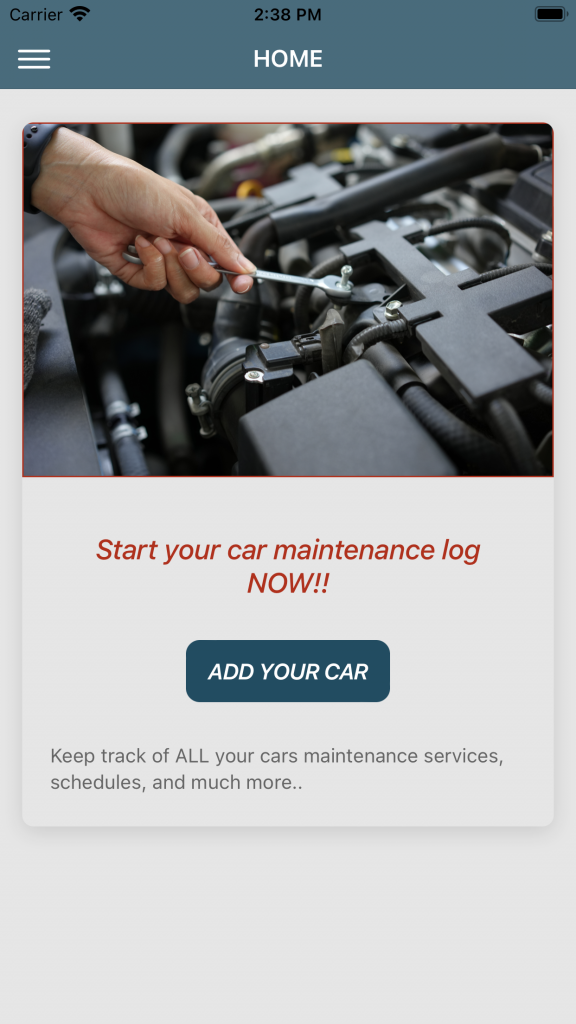
This is the startup application screen, where a list of all vehicles saved in your application (if any) are displayed. You can then choose a specific vehicle for editing its data/maintenance log, adding a new maintenance log, or even deleting the vehicle and its data from your application when you no longer need it.
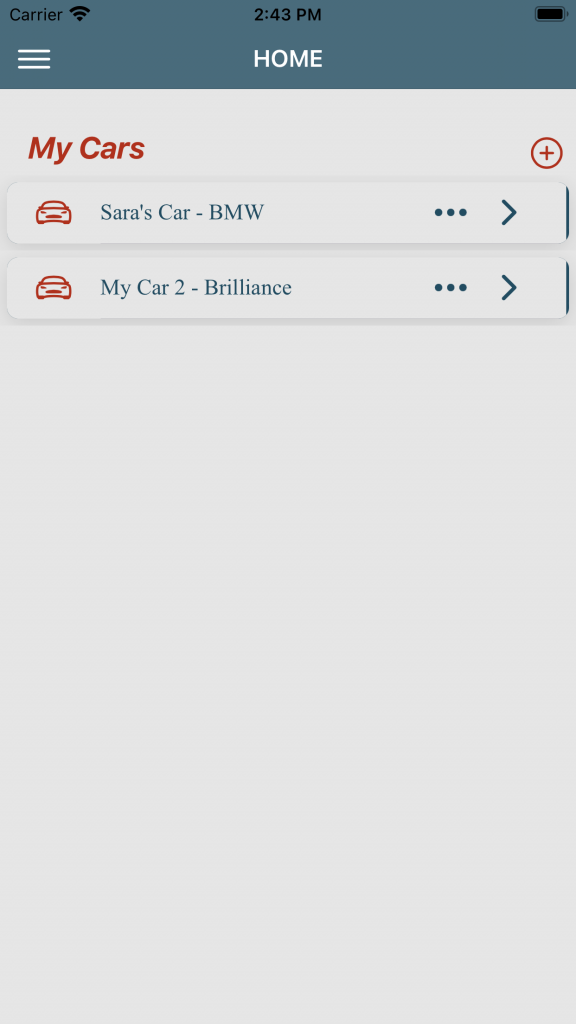
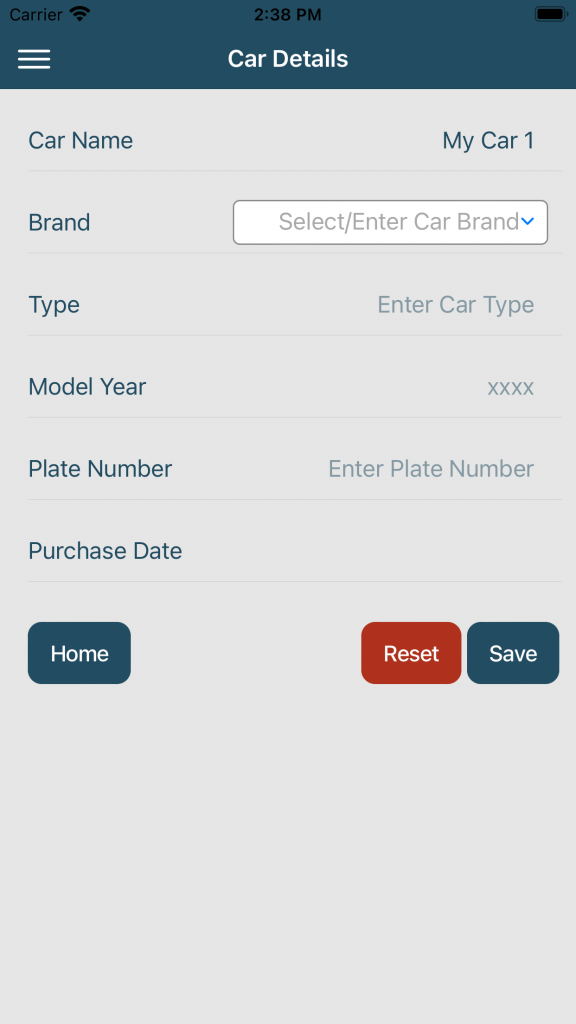
To start using your app, you need first to add your vehicle and save its general details (optional – such as its name within the app, brand, model, production year, etc.). You can edit or delete any saved details later on by clicking on the “arrow” beside each vehicle listed on the Home page. Repeat this step for each vehicle you want to add to your app.
Done with saving your vehicle and its details, now you are ready to add your maintenance log. Go to “Add New Maintenance” page where you choose the vehicle you want to add the log for (in case you saved more than one vehicle). Add and save the maintenance log data and details for your chosen vehicle. It’s that simple!!
To bear you the effort of writing every general/scheduled maintenance detail, choosing the Maintenance Type as “Preventive” will allow you to add details to your log by simply choosing them from a list. Any extra details/comments could still be added as well to the same log.
By that, you will have all your maintenance logs saved in one place, detailed, clear, and easy to access later on.
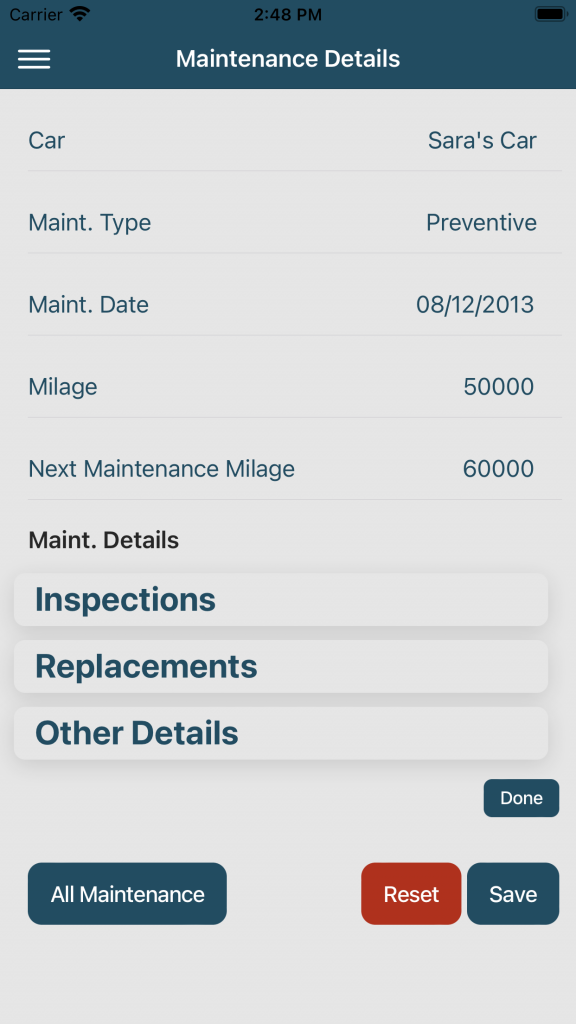
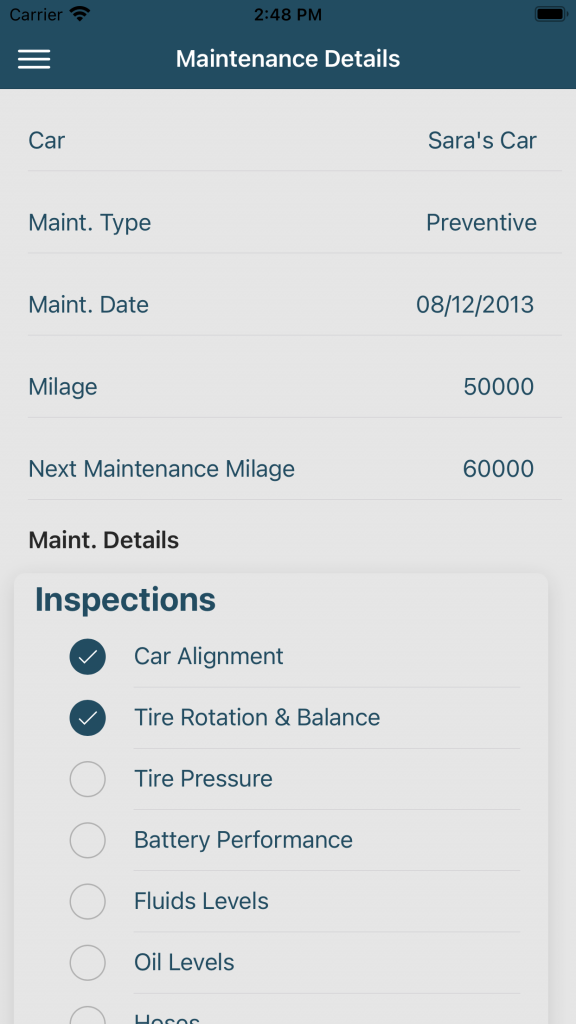
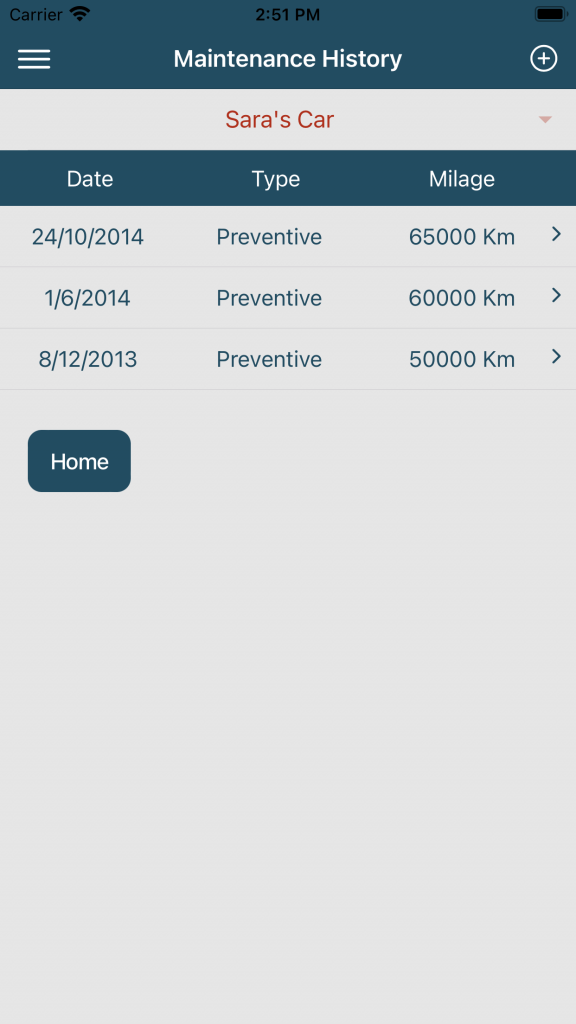
At any time, you can view a list of all logs saved for any of your vehicles. Go to “Maintenance History” page and select the vehicle you want. You can also edit these logs simply by clicking on the “arrow” next to the log you want to edit, and you will get the maintenance log with the previously entered data and details. Update and save your new data.
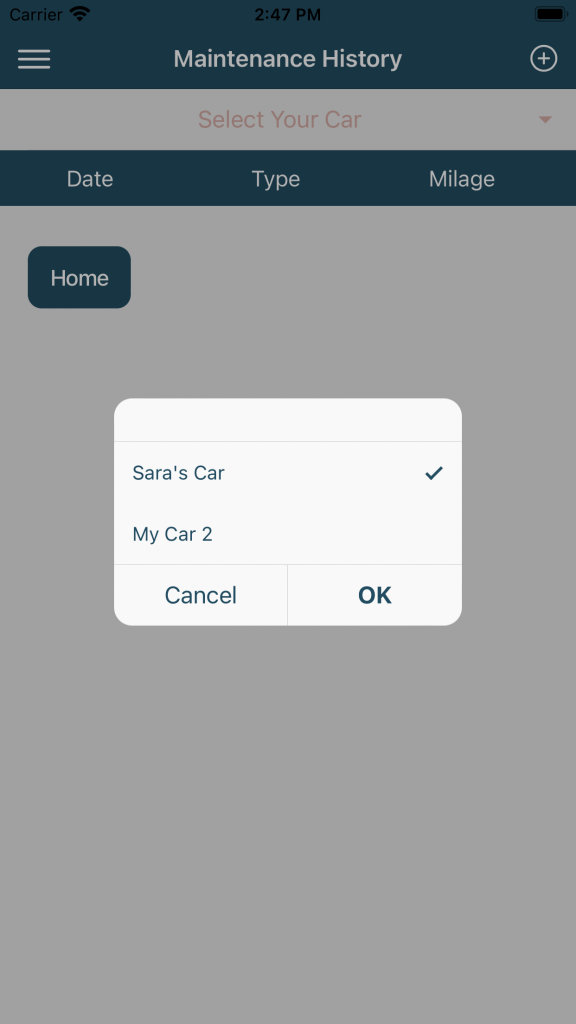
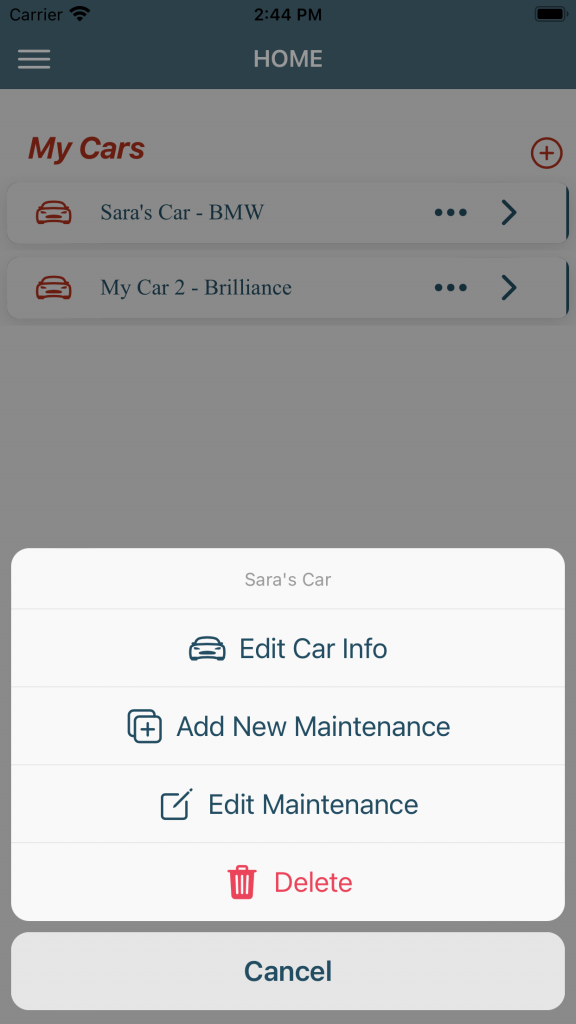
You can access any of the above actions for a specific vehicle simply by clicking on the “three dots” next to the vehicle listed on the Home page, and choose from the following:
- Edit Car Info : View/edit the vehicle’s general details.
- Add New Maintenance : Add a new maintenance log for the chosen vehicle.
- Edit Maintenance : View a list of all maintenance logs saved for the chosen vehicle, and choose the one to edit.
- Delete : Delete the chosen vehicle and all its data and maintenance logs from your application. Note: This action cannot be reversed once done.
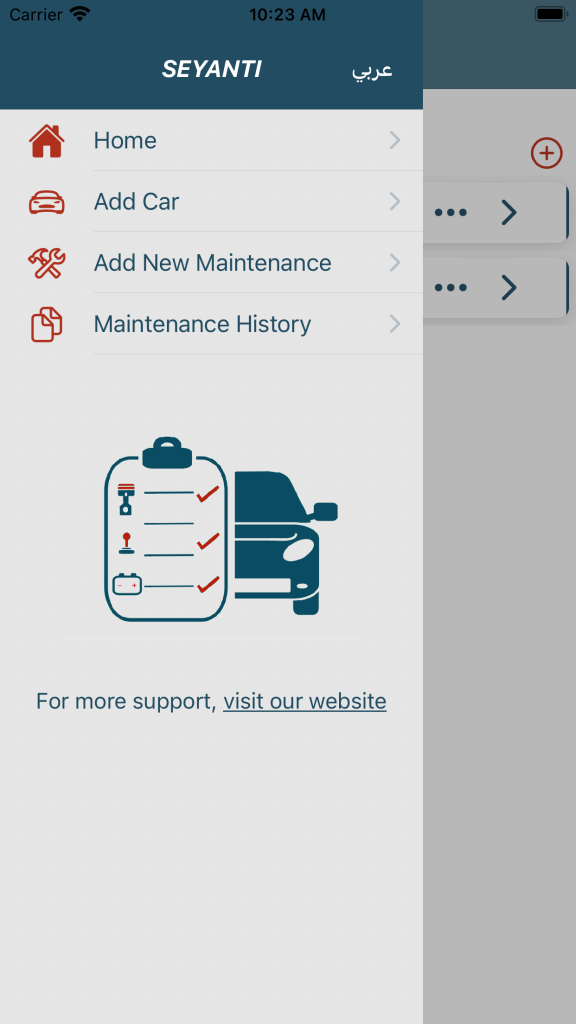
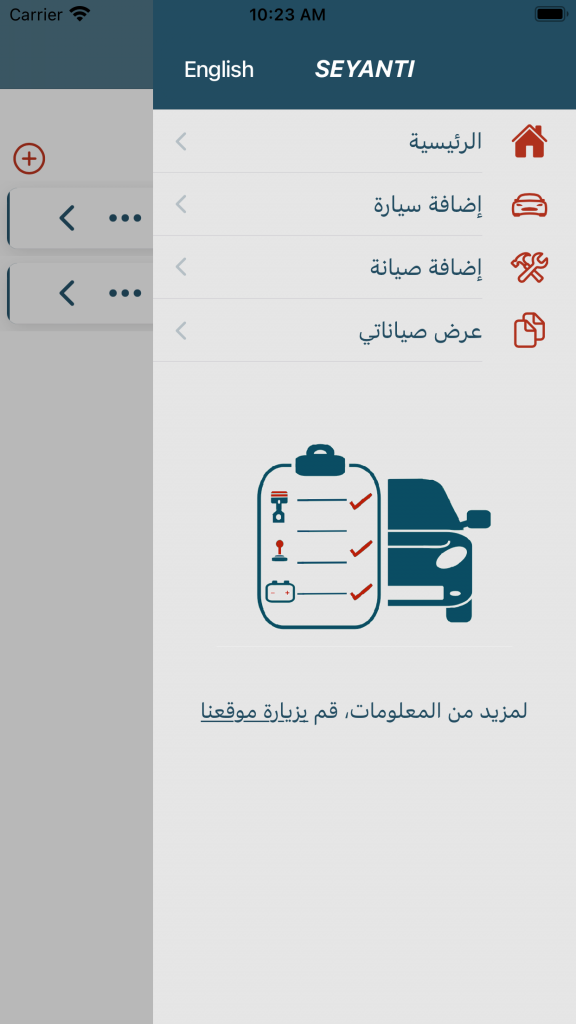
SeyanAgenda supports both English and Arabic displays and allows switching between them at any time. By opening the side bar, and clicking on the language button, it will switch between the two languages.
For inquiries or more support, contact us at support@solutions-booth.com